Crosstela HandbookПосібник Get the appЗавантажити застосунок

HandbookGetting started

The chart screen at a glance

Everything around the pattern, button by button, on iPad and on iPhone.

On this page
  1. On iPad
  2. On iPhone
  3. The Pattern panel

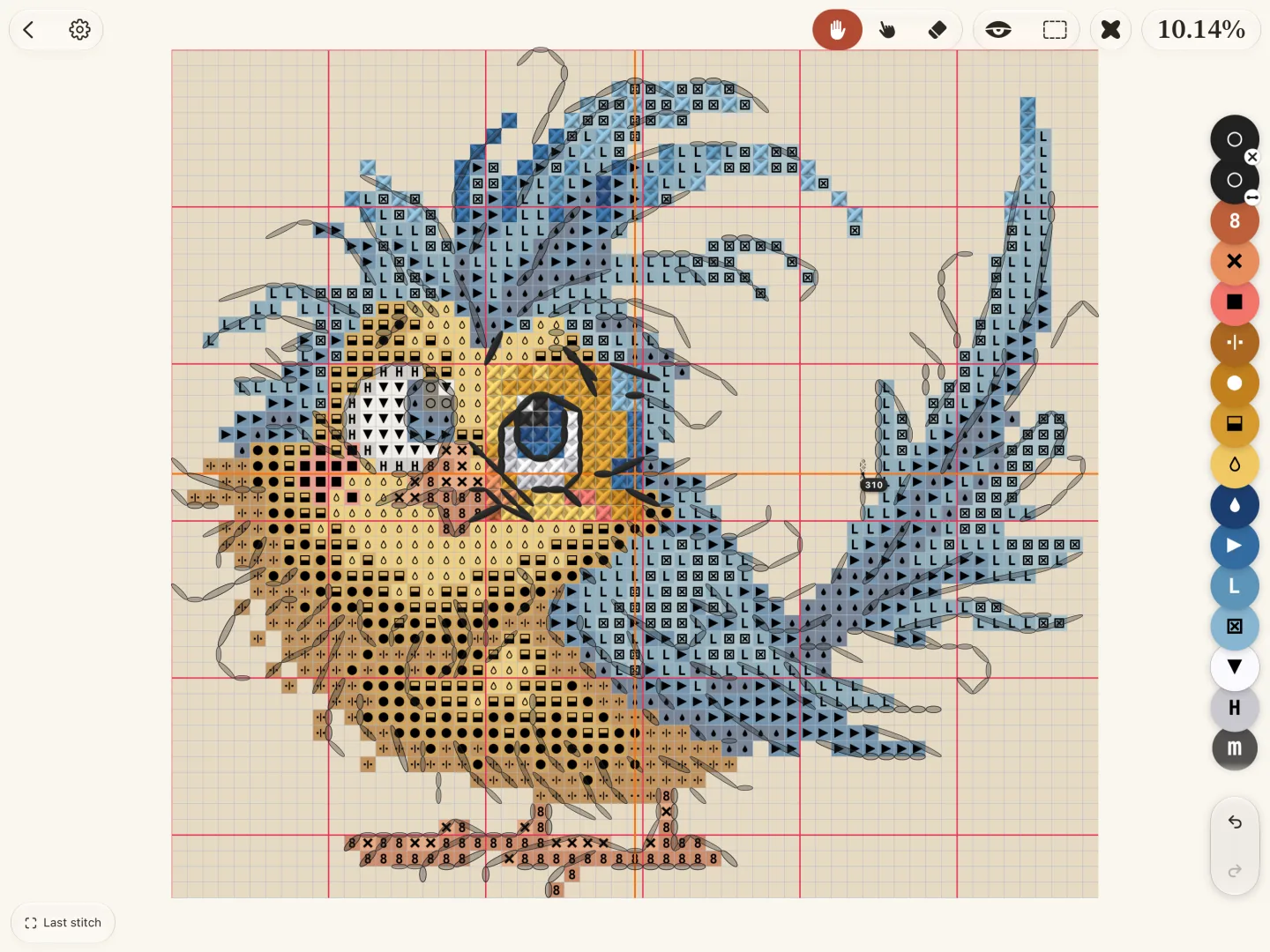
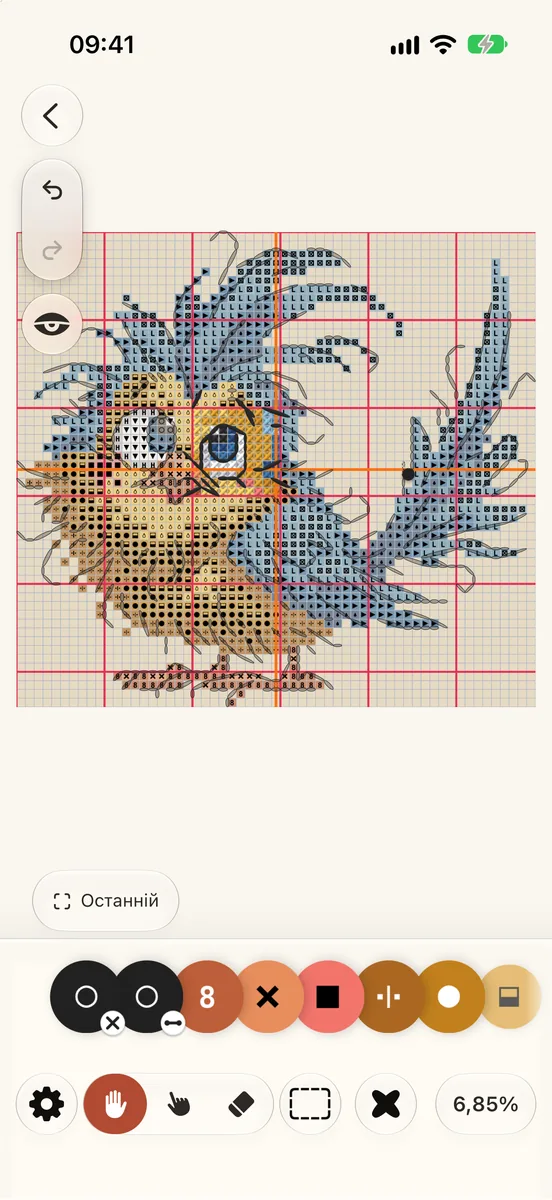
The pattern fills the middle of the screen. The tools, your colours and your progress sit around its edges, so the chart stays in view while you work. Tap a number to read what that control does.

On iPad

  1. 1Back to the shelf
  2. 2The Pattern panel
  3. 3Look / Mark / Eraser
  4. 4The Palette
  5. 5The eye: the finished piece
  6. 6Work area
  7. 7Progress, in %
  8. 8The colour rail
  9. 9Last stitch
  10. 10Undo and redo
  11. 11The chart

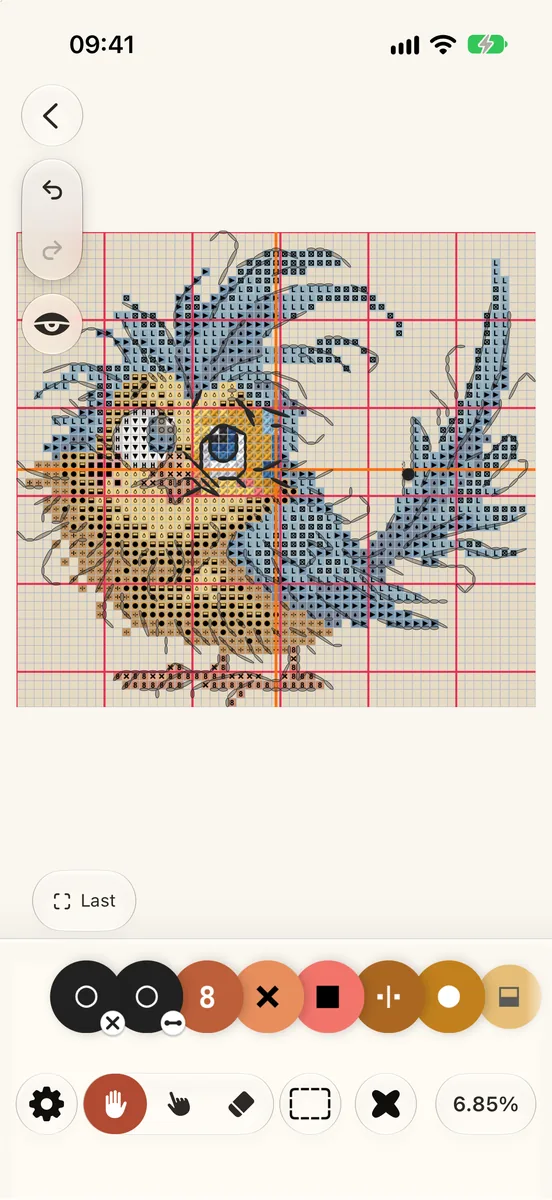
On iPhone

The bar is shorter: back, the Pattern panel, the eye, Mark, Eraser and the Palette. Your progress sits as a small pill at the bottom.

  1. 1Back to the shelf
  2. 2The Pattern panel
  3. 3The eye: the finished piece
  4. 4Mark
  5. 5Eraser
  6. 6The Palette
  7. 7The colour row
  8. 8Progress, in %
  9. 9Palette
  10. 10Progress

The colour row is off at first. To pin it, open the Palette and tap its pin. The work area has no button of its own on iPhone: find it in Pattern › View, or press and hold a square.

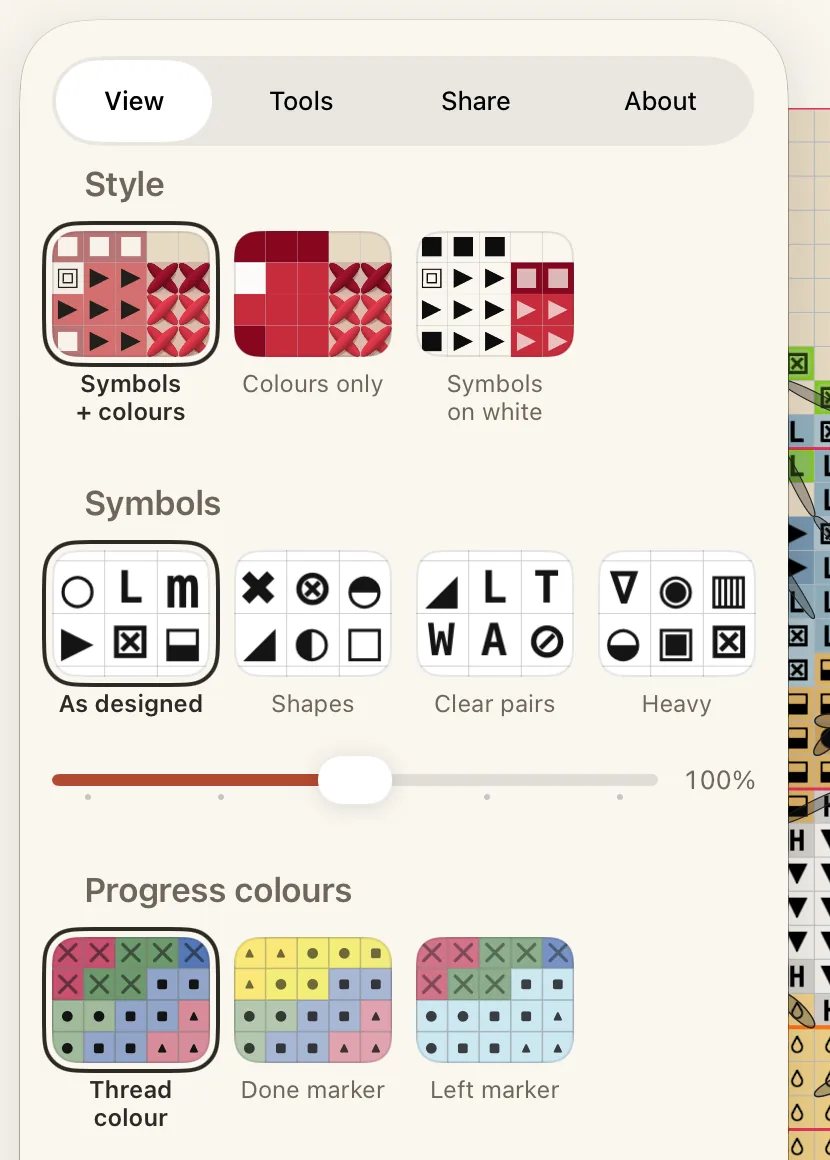
The Pattern panel

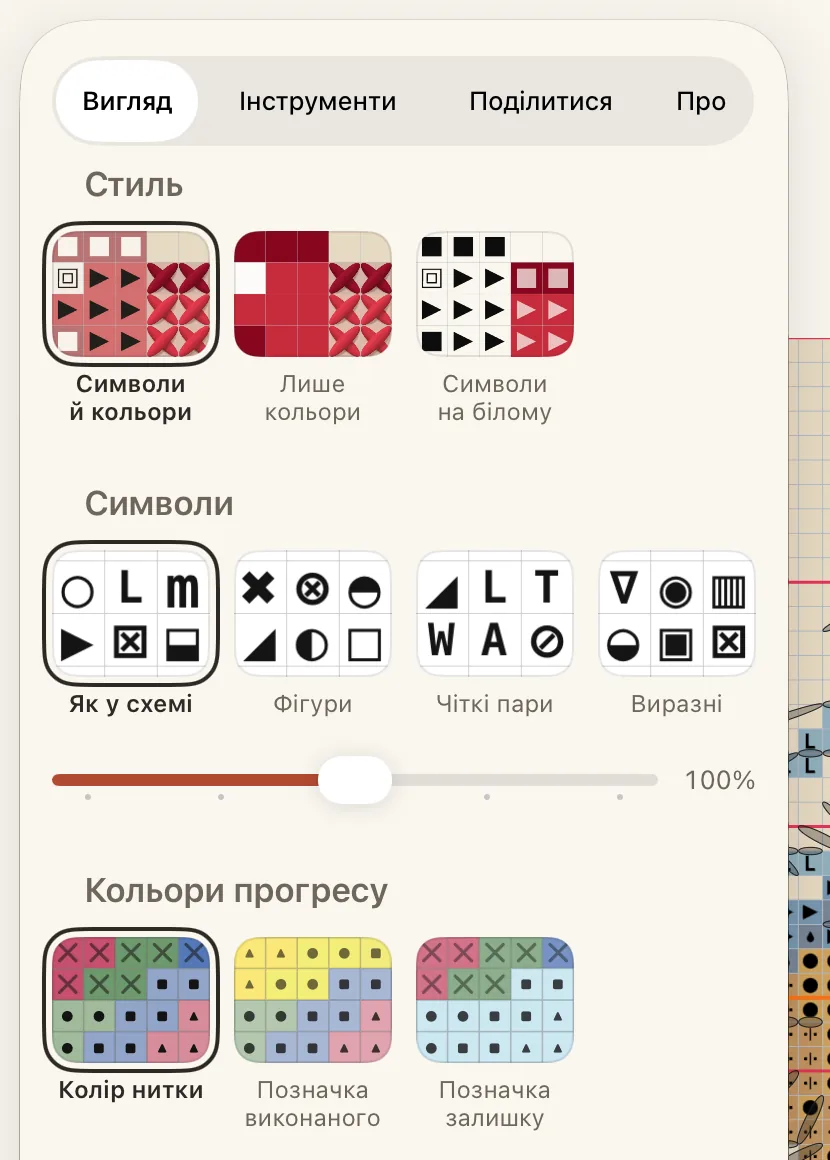
Tap the gear at the top to open the Pattern panel. It has four tabs:

  • View: the chart’s style, symbol size, progress colours, the canvas colour, and the list of gestures.
  • Tools: grid lines, rulers, the reading strip, how marking works, and which buttons sit at the bottom.
  • Share: a picture of your work, or the pattern as a file.
  • About: what is known about this pattern and where it came from.
  1. 1View
  2. 2Tools
  3. 3Share
  4. 4About

ПосібникПочаток роботи

Екран схеми з першого погляду

Усе навколо схеми, кнопка за кнопкою, на iPad і на iPhone.

На цій сторінці
  1. На iPad
  2. На iPhone
  3. Панель «Схема»

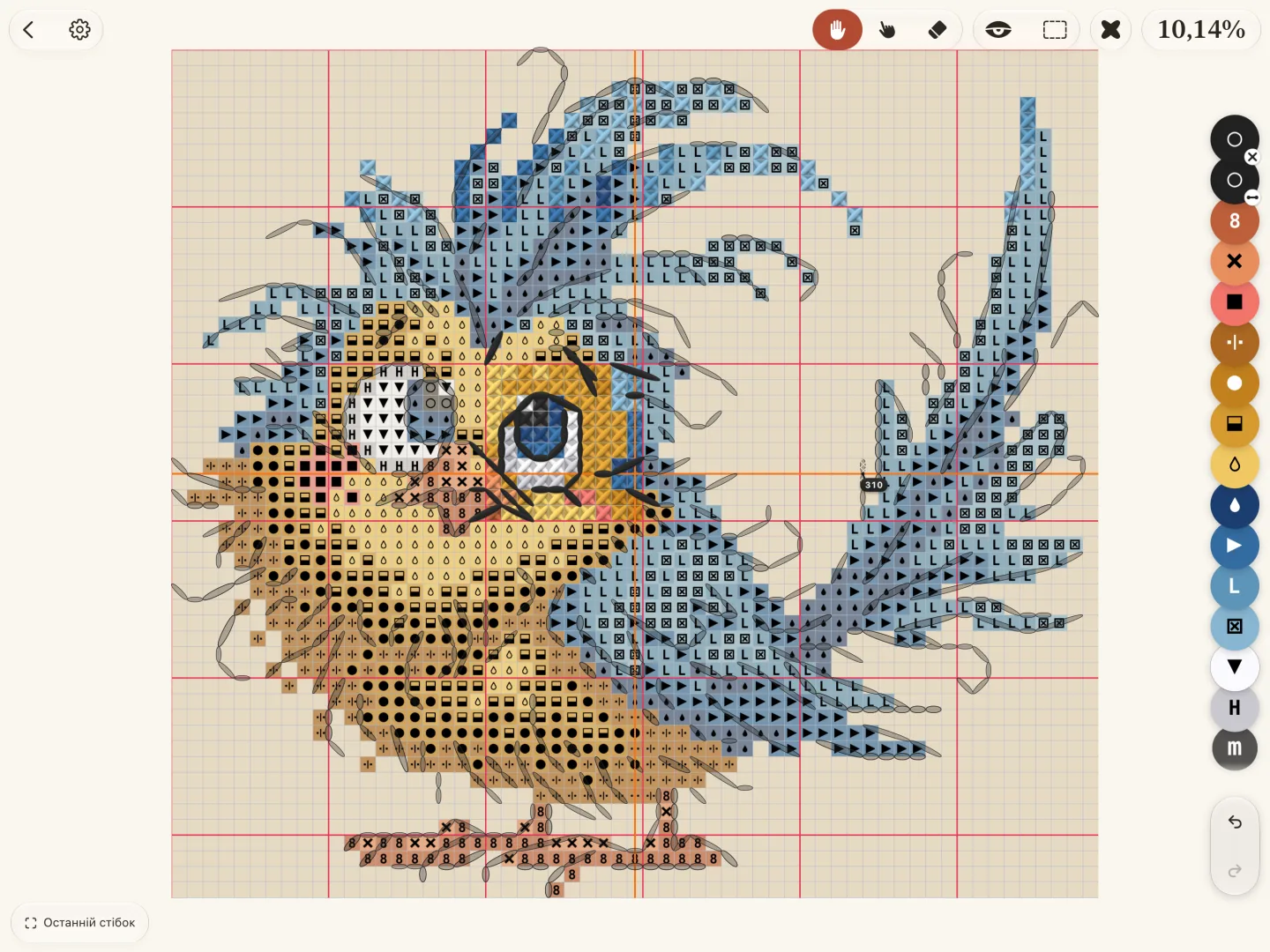
Схема займає середину екрана. Інструменти, кольори й прогрес розташовані по краях, тож схема завжди перед очима. Торкніться номера, щоб прочитати, що робить ця кнопка.

На iPad

  1. 1Назад до полиці
  2. 2Панель «Схема»
  3. 3Перегляд / Позначити / Гумка
  4. 4Палітра
  5. 5Око: готова робота
  6. 6Робоча ділянка
  7. 7Прогрес у %
  8. 8Шкала кольорів
  9. 9Останній стібок
  10. 10Скасувати й повторити
  11. 11Схема

На iPhone

Панель коротша: назад, панель «Схема», око, Позначити, Гумка і Палітра. Прогрес показано маленькою плашкою внизу.

  1. 1Назад до полиці
  2. 2Панель «Схема»
  3. 3Око: готова робота
  4. 4Позначити
  5. 5Гумка
  6. 6Палітра
  7. 7Ряд кольорів
  8. 8Прогрес у %
  9. 9Палітра
  10. 10Прогрес

Ряд кольорів спочатку вимкнено. Щоб закріпити його, відкрийте Палітру й торкніться шпильки. Окремої кнопки робочої ділянки на iPhone немає: вона є в Схема › Вигляд, або утримуйте клітинку.

Панель «Схема»

Торкніться шестірні вгорі, щоб відкрити панель Схема. У ній чотири вкладки:

  • Вигляд: стиль схеми, розмір символів, кольори прогресу, колір полотна і список жестів.
  • Інструменти: лінії сітки, лінійки, смуга читання, як працюють позначки і які кнопки стоять унизу.
  • Поділитися: зображення вашої роботи або сама схема як файл.
  • Про: що відомо про цю схему і звідки вона.
  1. 1Вигляд
  2. 2Інструменти
  3. 3Поділитися
  4. 4Про