Handbook › Share and sync
Print a pattern
Make a PDF for printing, then print it from the share sheet.
- Open the pattern and tap the gear to open the Pattern panel.
- Tap Share, then PDF for printing.
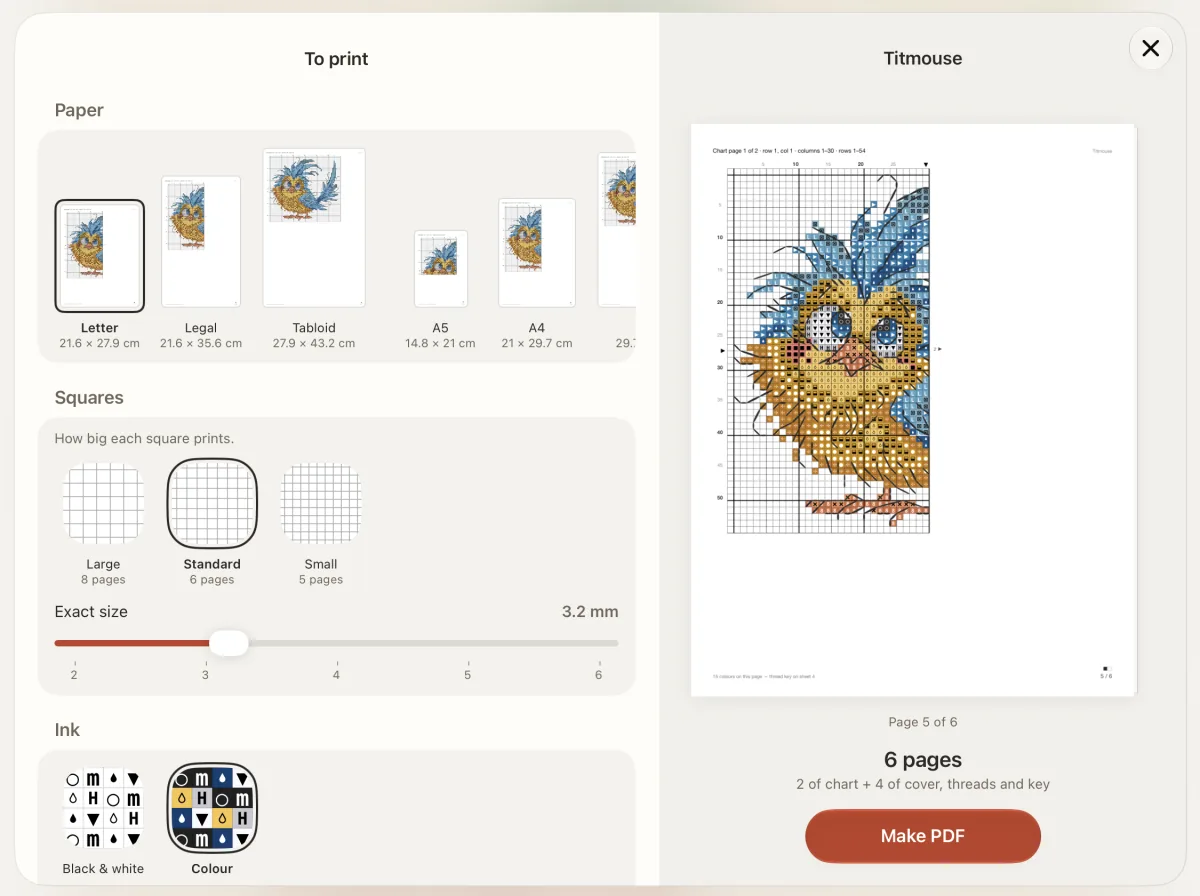
- Check the pages, then tap Make PDF.
- In the share sheet, tap Print, choose your printer and tap Print again.
- 1Make PDF
Crosstela has no print button of its own: it makes the PDF, and iOS prints it.
Set up the pages
Before you tap Make PDF, the card lets you choose:
- Paper: the paper size.
- Squares: how big each square prints, or how many fit on a page.
- Ink: Black & white or Colour.
- Pages: the overlap between sheets, a page with the whole chart, and the order of the thread key.
The card shows the page count and, under Worth knowing, anything the printed chart cannot show.
Посібник › Поширення й синхронізація
Друк схеми
Створіть PDF для друку, а потім надрукуйте його з меню «Поділитися».
- Відкрийте схему й торкніться шестірні, щоб відкрити панель Схема.
- Торкніться Поділитися, а потім PDF для друку.
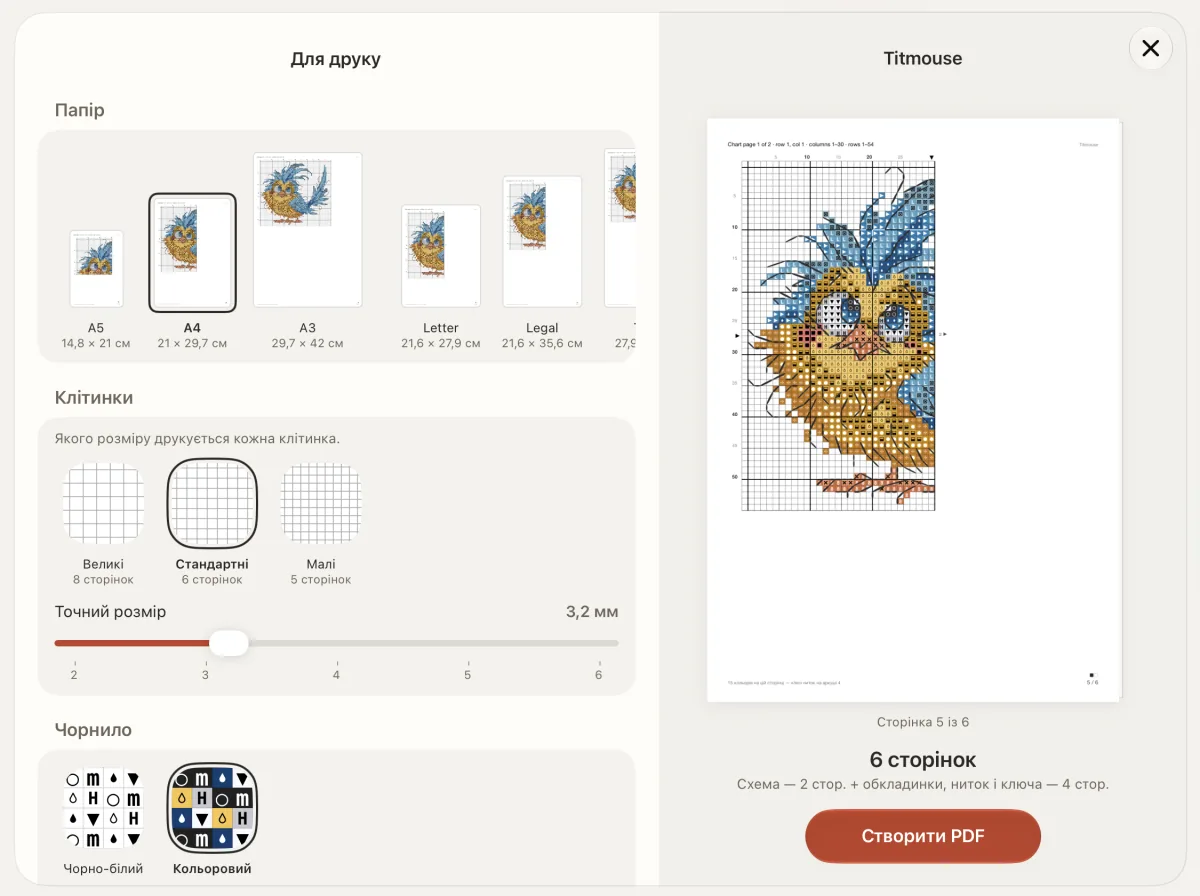
- Перевірте сторінки й торкніться Створити PDF.
- У меню «Поділитися» торкніться Друк, виберіть принтер і ще раз торкніться Друк.
- 1Створити PDF
Окремої кнопки друку в Crosstela немає: застосунок створює PDF, а друкує його iOS.
Налаштуйте сторінки
Перш ніж торкнутися Створити PDF, на картці можна вибрати:
- Папір: розмір аркуша.
- Клітинки: якого розміру друкується кожна клітинка або скільки їх уміщується на сторінці.
- Чорнило: Чорно-білий або Кольоровий.
- Сторінки: перекриття між аркушами, сторінка з усією схемою і порядок ключа ниток.
Картка показує кількість сторінок, а в розділі Варто знати — те, чого друкована схема не покаже.